A user guide on how to operate the Energy Web Verified Compute Cloud (VCC) Runtime.
This section provides a step by step guide on how to operate the Energy Web Verified Compute Cloud (VCC) Runtime.
Getting started
Download the latest version of the Energy Web VCC Runtime here.
Install the downloaded installation file based on your operating system.
Upon running the application, it does not display any window or screen. Instead, the Energy Web VCC Runtime logo displays on the system tray.
An example of VCC Runtime logo displayed on system tray as highlighted in the red box on the upper, right corner of the screen
Understanding different runtime status
Below are the different runtime status and their meaning.
Status
Description
⚪ No Runtime Set
There is no seed phrase configured in the runtime.
⚪ Validating
The runtime is configured with a seed phrase and is currently validating if it has an operator linked to it.
🔴 No Operator Linked
An error state when no operator is linked with the account associated with the configured runtime seed phrase. The runtime checks every minute if the runtime account is already linked to an operator. Once an operator is already linked, this state automatically moves to the "Not Started" state.
⚪ Not Started
The runtime has successfully configured the seed phrase but is not yet running.
🟠 Starting
The runtime is initiated to run.
🟢 Started
The runtime has downloaded, installed, and deployed the Energy Web VCC Runtime Protocols of the subscribed solution groups. The protocols are also running and waiting for the trigger for them to execute business computations to derive verified, consensus-based results.
Setting-up the runtime seed phrase
To set the runtime seed phrase, simply click on the "Set Runtime Seedphrase" from the menu.
Input the 12-word seed phrase of your runtime account. You may paste your space-separated 12-word seed phrase from clipboard. In the event that you need to clear the form, the Reset button is available at the upper-right corner of the form next to the Close button. Click on the Continue button to proceed.
If you have used the Marketplace application before, the runtime account is simply just your Worker Node Account. The Energy Web VCC Operator Account is the same as your Marketplace operator account.
Ensure that your runtime account is already linked to your Energy Web VCC Operator Account.
The Energy Web VCC Runtime seed phrase is filled into the form
The application changes status from "No Runtime Set" to "Validating".
If there are no issues with the seed phrase, the success message will be displayed and the form automatically closes. Alternatively, click on the Close icon at the upper-right corner of the form to manually close the dialog.
Energy Web VCC Runtime seed phrase is successfully configured
The truncated Energy Web VCC Runtime account address will be displayed on the menu. It is important to confirm if the account imported is correct.
Energy Web VCC Runtime account address is displayed on the menu after configuration
Generating the Runtime Seedphrase
If there is no seed phrase available yet, this can easily be created from the Import Runtime Account screen by simply clicking on the Create New tab. Then, click on the Generate account button so the system can securely generate the 12-word recovery phrase for the new VCC Runtime account.
Create New VCC Runtime Account
The generated 12-word seed phrase gets displayed on the screen. The system requires these to be backed-up. To do so, click on the Backup Mnemonic button then provide the desired file name and folder location to download the backup.
Backup VCC Runtime Seedphrase
Choose seed phrase backup file name and folder location
After backing-up, the "Backup Saved" status gets displayed. Click on the Continue button to proceed.
VCC Runtime Seedphrase backup saved
Confirm the backed-up recovery seed phrase by entering them into the confirmation form. Then, click on the Confirm button to proceed.
Confirm backed-up seed phrase
New VCC Runtime account is created
The newly generated seed phrase gets automatically set. Since this is a new account, the runtime status is set to "No Operator Linked".
Newly generated seed phrase is automatically set
Handling "No Operator Linked" Error
In the event that the imported seed phrase is not linked to an operator, the "No Operator Linked" status is displayed.
To handle this case, there are 2 options:
Wait for the system to automatically detect that an operator is linked to this Energy Web VCC Runtime account
Reset the last configured account, and then configure it again using the same seed phrase
Copying the full Energy Web VCC Runtime account address
The Energy Web VCC Runtime account address is a fully qualified Polkadot address. To copy the full Energy Web VCC Runtime account address to clipboard, simply click on the Energy Web VCC Runtime logo as displayed on the system tray, hover on the truncated runtime address, and click on the Copy Runtime Address menu item.
Copy Runtime Address
Resetting the configured Energy Web VCC Runtime account
Resetting the configured Energy Web VCC Runtime account can only be done when the status is Not Started. Otherwise, stop the runtime first to enable this feature.
To reset the configured Energy Web VCC Runtime account, simply click on the Energy Web VCC Runtime logo as displayed on the system tray, hover on the truncated runtime address, and click on the Reset Runtime Seedphrase menu item.
Reset Runtime Seedphrase
Running the Energy Web VCC Runtime
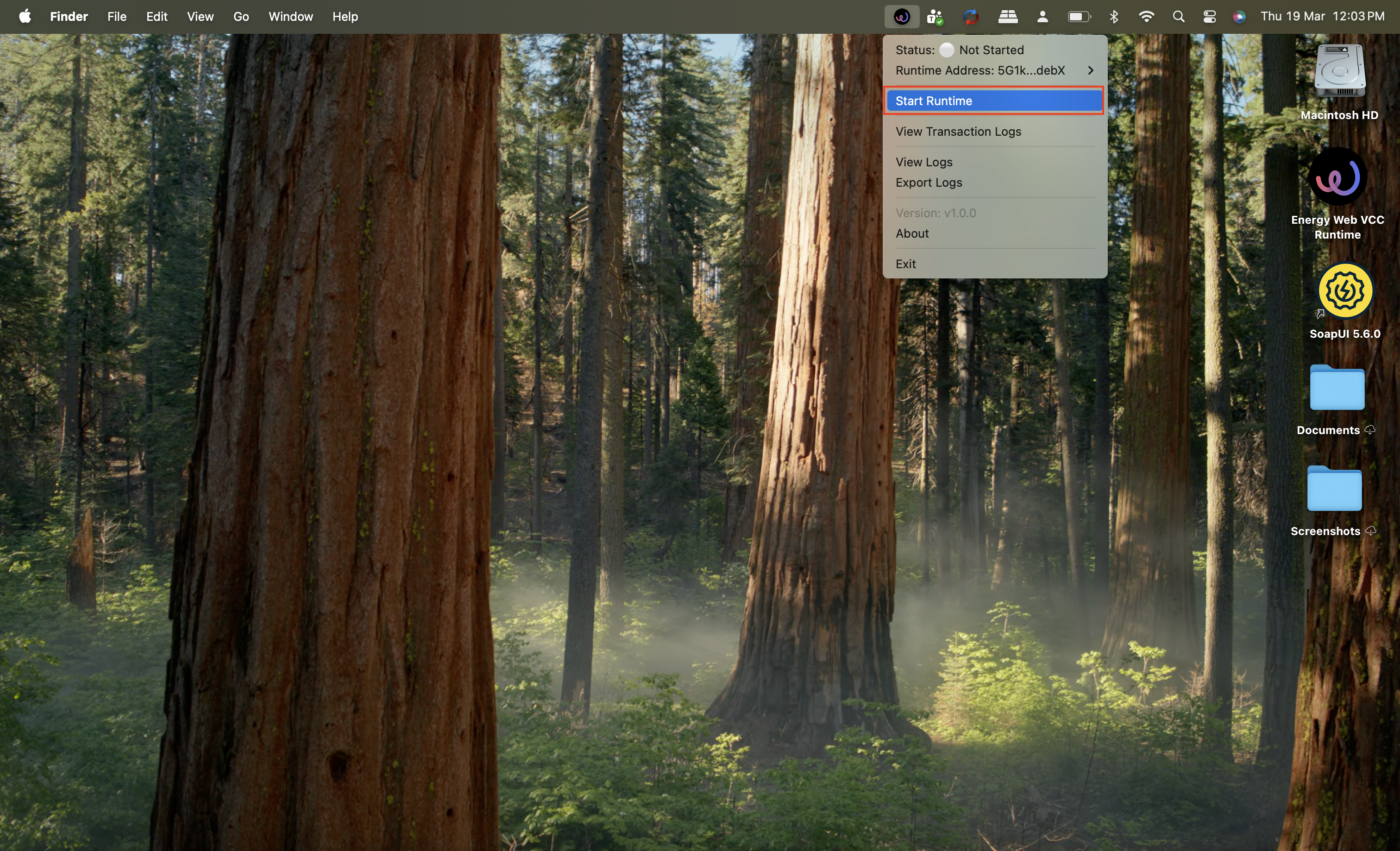
To run the Energy Web VCC Runtime, click on the Energy Web VCC Runtime logo as displayed on the system tray, then click on the Start Runtime menu item.
Start Runtime
The application changes its status from "Not Started" to "Starting".
Runtime is starting
The runtime will initialize, download, install, and deploy the VCC protocols (previously called "Solutions" in the Marketplace app) of the subscribed VCCs. Once everything is done, the application changes its status from "Starting" to "Started".
Users can only check the runtime details (subscriptions and VCC protocols installed) when the application is in "Started" state.
Runtime is successfully started
Stopping the Energy Web VCC Runtime
To stop the Energy Web VCC Runtime, click on the Energy Web VCC Runtime logo as displayed on the system tray, then click on the Stop Runtime menu item.
Stop Runtime
The application changes its status from "Started" to "Not Started".
Runtime status changed to "Not Started"
View runtime details
Users can only check the runtime details (subscriptions and VCC protocols installed) when the application is in "Started" state.
To view the Energy Web VCC Runtime details, click on the Energy Web VCC Runtime logo as displayed on the system tray, then click on the View Runtime Details menu item.
The Runtime Details dialog displays. It shows the list of active VCCs which the VCC Operator is currently subscribed to.
To view the list of currently deployed and running VCC protocols under the subscribed VCC, simply click on the Expand icon as highlighted in the red box as shown in the screenshot below.
View the list of VCC protocols
VCC protocols list
In the event that the VCC is newly subscribed to, and is not yet appearing the Runtime Details screen, click on the Refresh icon to manually check if it has been synced into the runtime.
However, the runtime automatically syncs any change to the subscriptions, VCCs, and its protocols such as:
If there are new subscriptions, the runtime automatically syncs the VCC details, waits for the next reward period, and automatically install any VCC protocols in the newly subscribed VCC
If there are VCC expiries or unsubscriptions, the runtime automatically uninstalls all VCC protocols of the expired or unsubsubcribed VCC then removes its details accordingly - preserving only the application logs
If there are new VCC protocols, the runtime automatically installs them
If there are VCC protocol removals or expiries, the runtime automatically uninstalls them
Manually refresh the list of subscribed VCCs and their protocols
View transaction logs
The transaction logs can be found on the EWX Marketplace website specifically on the Dashboard details page.
To view the transaction logs, click on the Energy Web VCC Runtime logo as displayed on the system tray, then click on the View Transaction Logs menu item.
View Transaction Logs
The application opens the default browser and navigates to the Energy Web X website. Connect the operator account linked to the Energy Web VCC Runtime account.
Connect VCC Operator Account
After connecting the operator account, the system displays the currently subscribed pools under the My Pools tab. This shows the pool positions including subscribed amount, pending rewards, and the number of votes the operator's Energy Web VCC Runtime has submitted in the current reward period. Click on the Manage Pool button to view more details of a particular subscribed pool.
List of subscribed pools under My Pools tab
In the Runtime Details section, the list of Energy Web VCC protocols under the selected pool gets displayed showing their status and vote submissions in the current reward period.
Runtime Details section showing list of VCC Protocols under the subscribed pool
Click the View Transactions link to see the list of individual on-chain transactions representing the votes submitted by the VCC Runtime for that particular VCC protocol in a specific reward period.
List of submitted on-chain transactions representing Energy Web VCC protocol results submissions
Viewing and exporting runtime application logs
The Energy Web VCC Runtime application logs contain all logs related to both the application itself and the VCC protocol logs.
To view the application logs, click on the Energy Web VCC Runtime logo as displayed on the system tray, then click on the View Logs menu item.
View Logs
This opens the folder where the application logs are stored in the system.
List of log files generated by the application
To export the application logs, click on the Energy Web VCC Runtime logo as displayed on the system tray, then click on the Export Logs menu item.
Export Logs
Choose where to store the application logs to be exported and click Save.
Choose export file location
The exported log will be contain in a zip file.
Exported application logs
Checking the application version
To check or update the application version to the latest, simply click on the Energy Web VCC Runtime logo as displayed on the system tray, the current version will be displayed in one of the menu items.
Energy Web VCC Runtime current application version
To check for new Energy Web VCC Runtime version updates, click on the Energy Web VCC Runtime logo as displayed on the system tray, then click on the About menu item.
View About page
The About screen displays. Click on Check for Updates button.
Check for application version updates
If there are new updates available, the new version and the Update Available button are displayed.
Update Available
Click on the Update Available button to proceed downloading the new version and subsequently install it.
If there are no new updates, the application displays the proper message accordingly.
Exit from the application
Simply click on the Exit menu item to terminate the application from the system tray.
The runtime is only terminated from the system tray. However, it will still operate in the background as a service. This means that if the VCC Runtime is in "Started" state, it will continuously execute the deployed VCC protocols and will actively submit votes. To perpetually close the runtime, the user has to manually terminate it through the Task Manager or Terminal/Console of their respective systems.