> For the complete documentation index, see [llms.txt](https://docs-launchpad.energyweb.org/llms.txt). Markdown versions of documentation pages are available by appending `.md` to page URLs; this page is available as [Markdown](https://docs-launchpad.energyweb.org/ewx-ecosystem/staking-on-energy-web-x/delegated-staking-on-energy-web-x/delegated-staking-with-the-energy-web-x-staking-app/delegate-stake-to-a-collator.md).

# Delegate stake to a collator

### Understanding the terms in the display

Before staking, it is important to get acquainted and be familiar with the terms used in the Stake page.

* **Total Staked** - The total amount of $EWT you have actively staked across all collators.
* **Total Rewards** - The total amount of $EWT you’ve earned from staking and delegation so far.
* **Est. Rewards** - An estimated reward rate based on current network conditions. Rewards are variable, not guaranteed, and may change via on‑chain governance.
* **Available to Stake** - The amount of $EWT in your wallet that can be staked.
* **Collator** - Nodes that maintain the EWX parachain by producing block candidates and submit them for validation.
* **My Stakes** - The amount of $EWT you have currently staked with your chosen collator(s).
* **Pending Unstake** - $EWT currently in the unstaking process. After the cooldown, you’ll be able to claim it from the Pending tab.
* **Transaction Cost** - Network fee required to process the staking transaction.

### Stake EWT to nominate a collator for delegation

{% hint style="success" %}
Ensure that there is enough EWT in the connected EWX wallet account.\
\
For EWX wallet accounts with insufficient EWT, tokens can be bridged from EWC and ETH networks using the official [EWX Bridge Web App](https://bridging.energywebx.com/bridge).
{% endhint %}

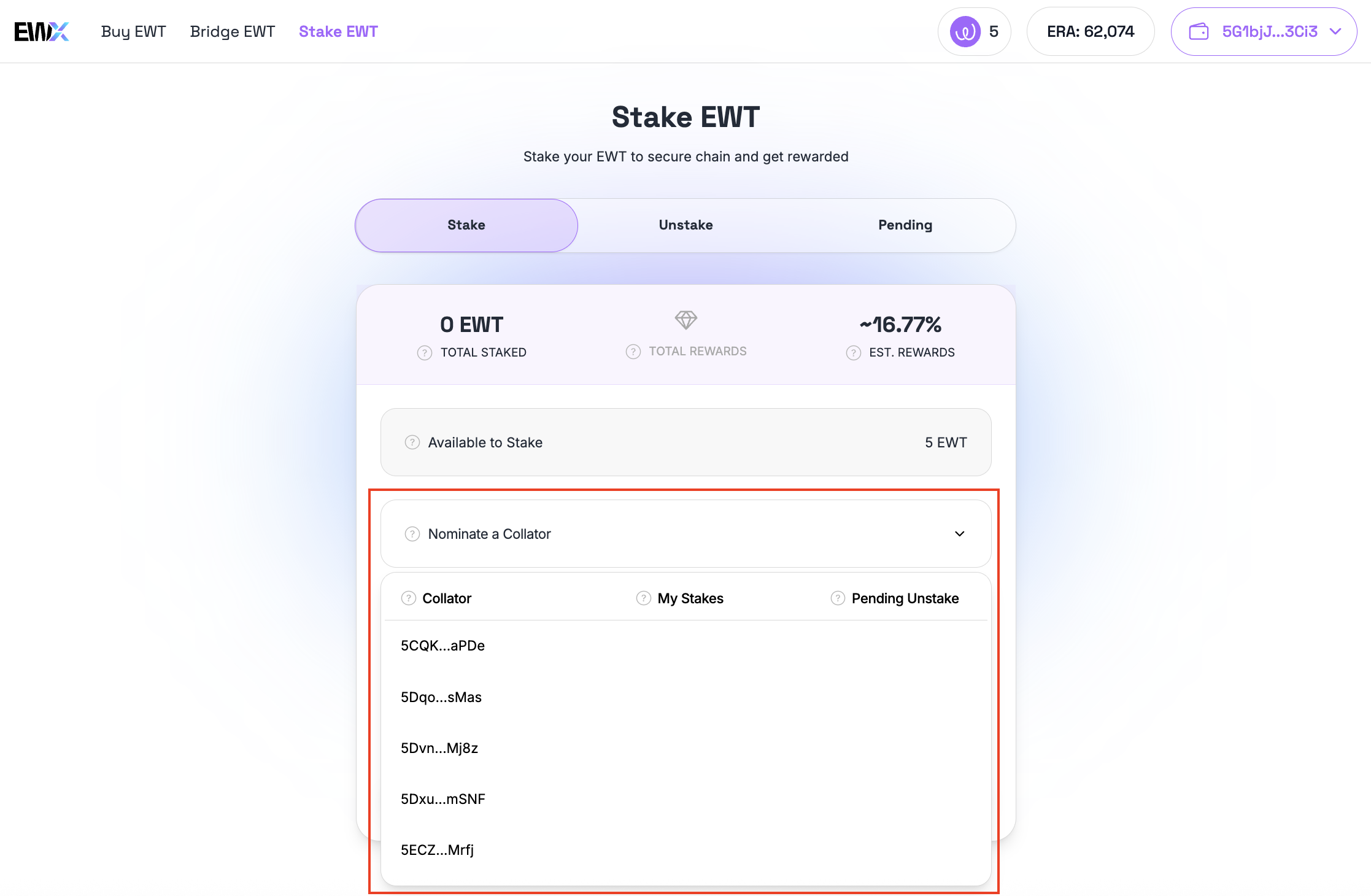
To stake, choose from the list of collators available to nominate for delegation.

{% hint style="warning" %}
Only collators which you don't have any pending unstake can be nominated for delegation.
{% endhint %}

<figure><img src="/files/CMO3bNzNmuYzaqJKnaIu" alt=""><figcaption><p>Choose a collator to delegate the stake</p></figcaption></figure>

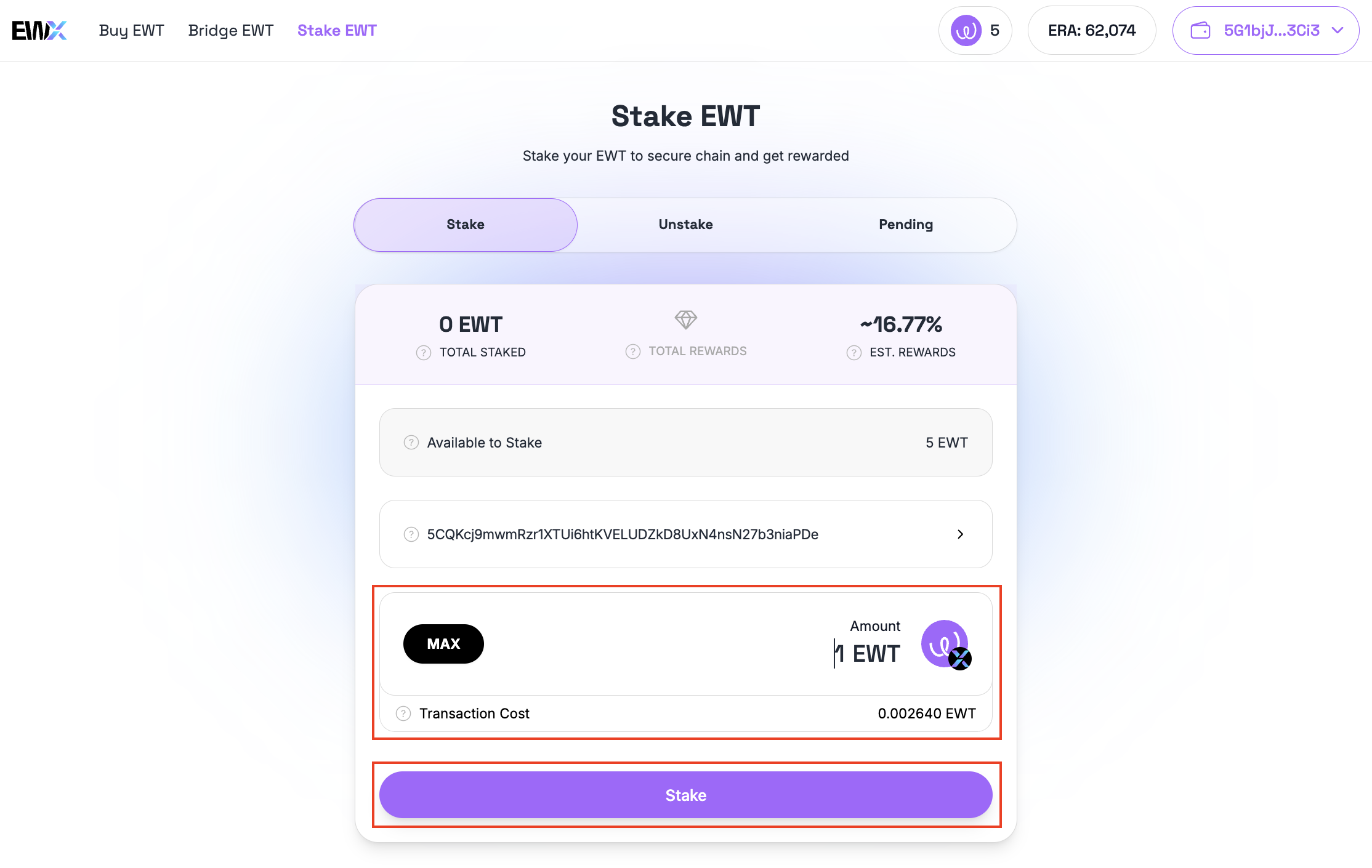
Input the amount to stake and click the "Stake" button.

{% hint style="warning" %}
Staking locks your EWT for an unbonding period (currently 2 eras). Slashing risk applies: if a selected collator malperforms, a portion of your stake may be slashed. Rewards are not guaranteed.
{% endhint %}

<figure><img src="/files/jKGhbC1P9ljJLTKLcDkW" alt=""><figcaption><p>Input amount to stake</p></figcaption></figure>

A confirmation screen will be displayed. Review the details as displayed and ensure that the checkbox is ticked. Click the "Confirm" button to initiate the transaction.

<figure><img src="/files/s97S2FkVZ9NrPRdYO1bB" alt="" width="375"><figcaption><p>Staking confirmation dialog</p></figcaption></figure>

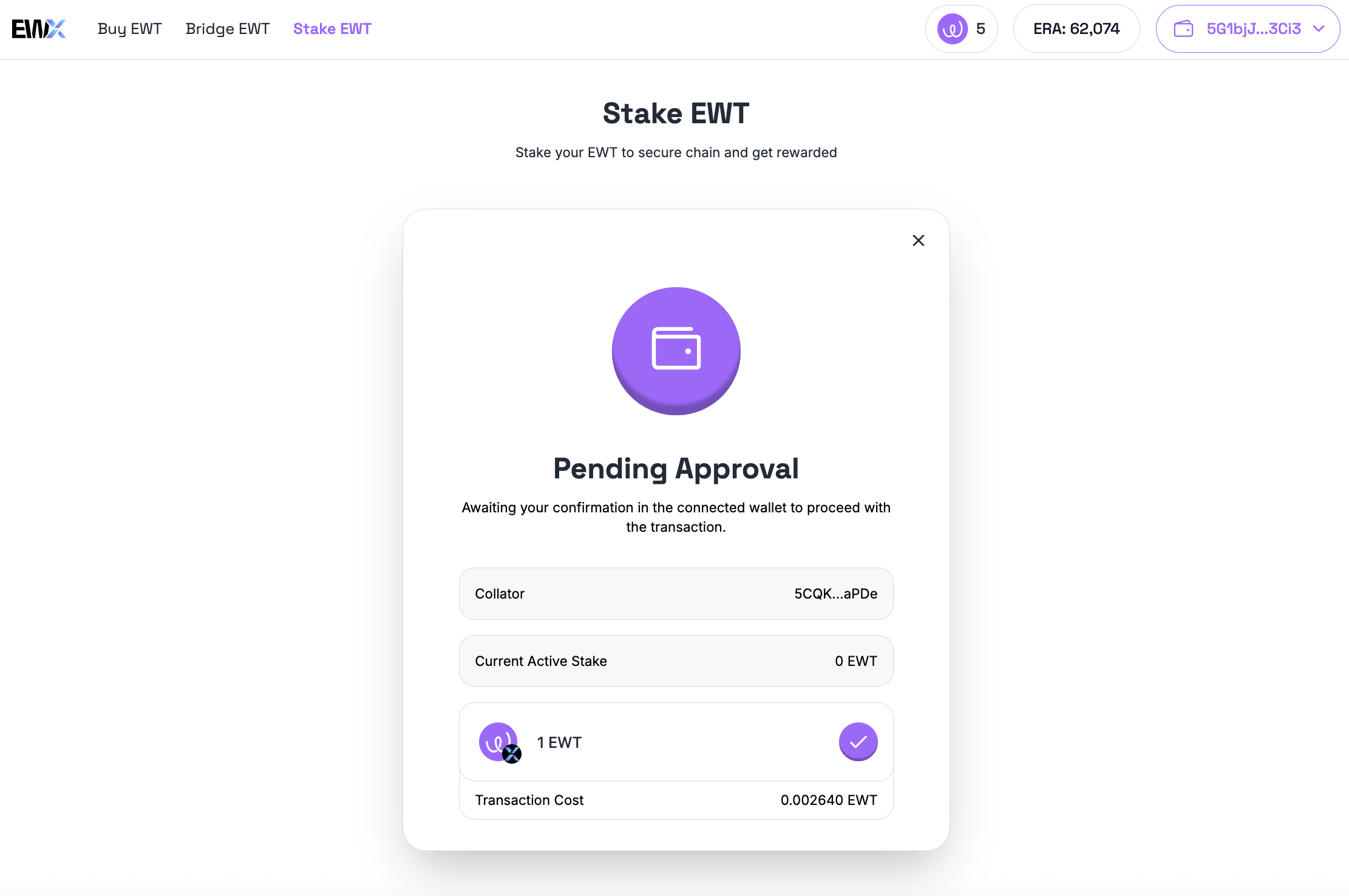
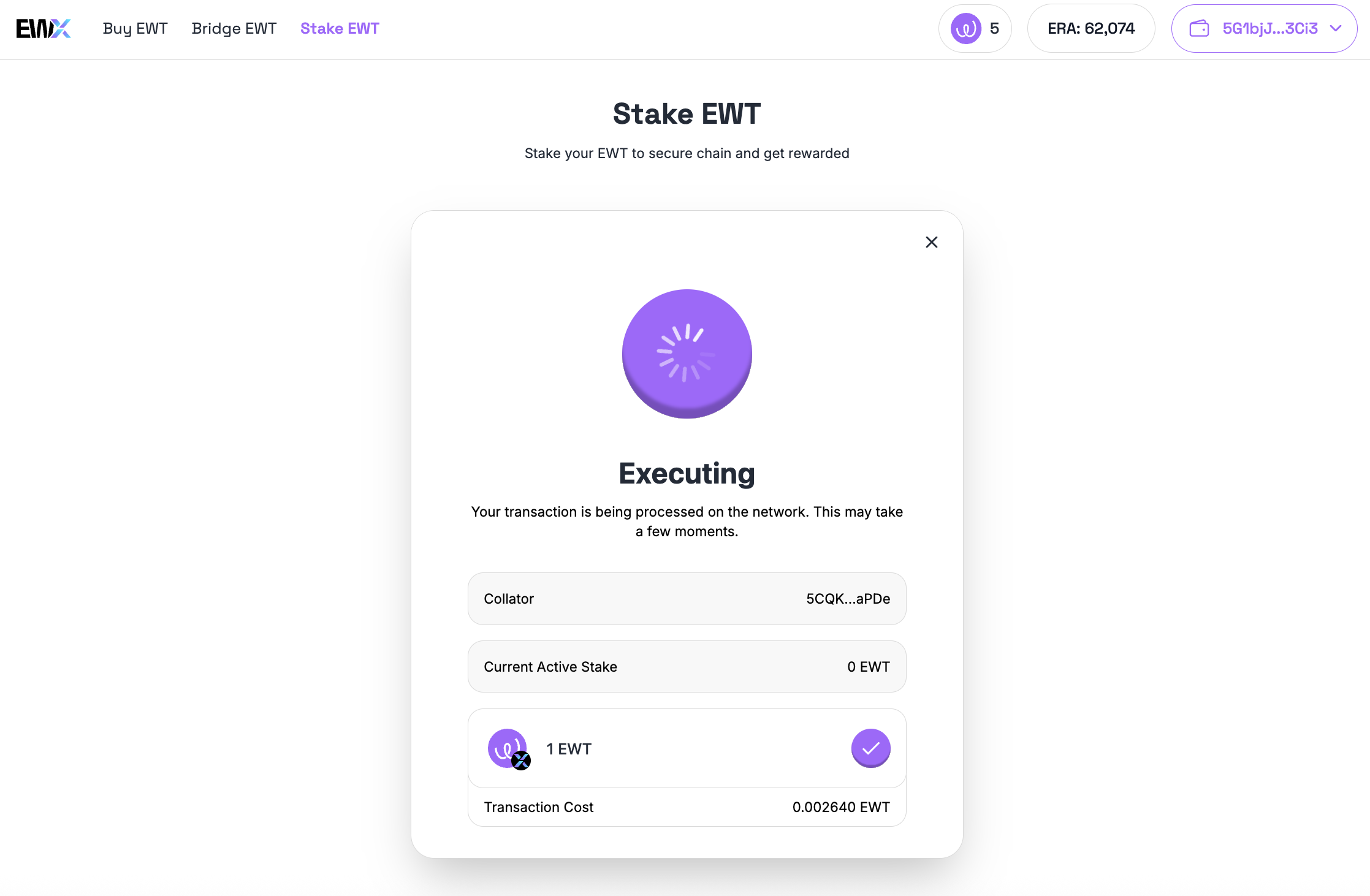
Confirm the transaction in your wallet.

<figure><img src="/files/XASAHGwvi7chFIbdAFDY" alt=""><figcaption><p>Stake transaction is pending approval</p></figcaption></figure>

<figure><img src="/files/qFn95u3z8ifOM8k2Alqj" alt=""><figcaption><p>Stake transaction is executing</p></figcaption></figure>

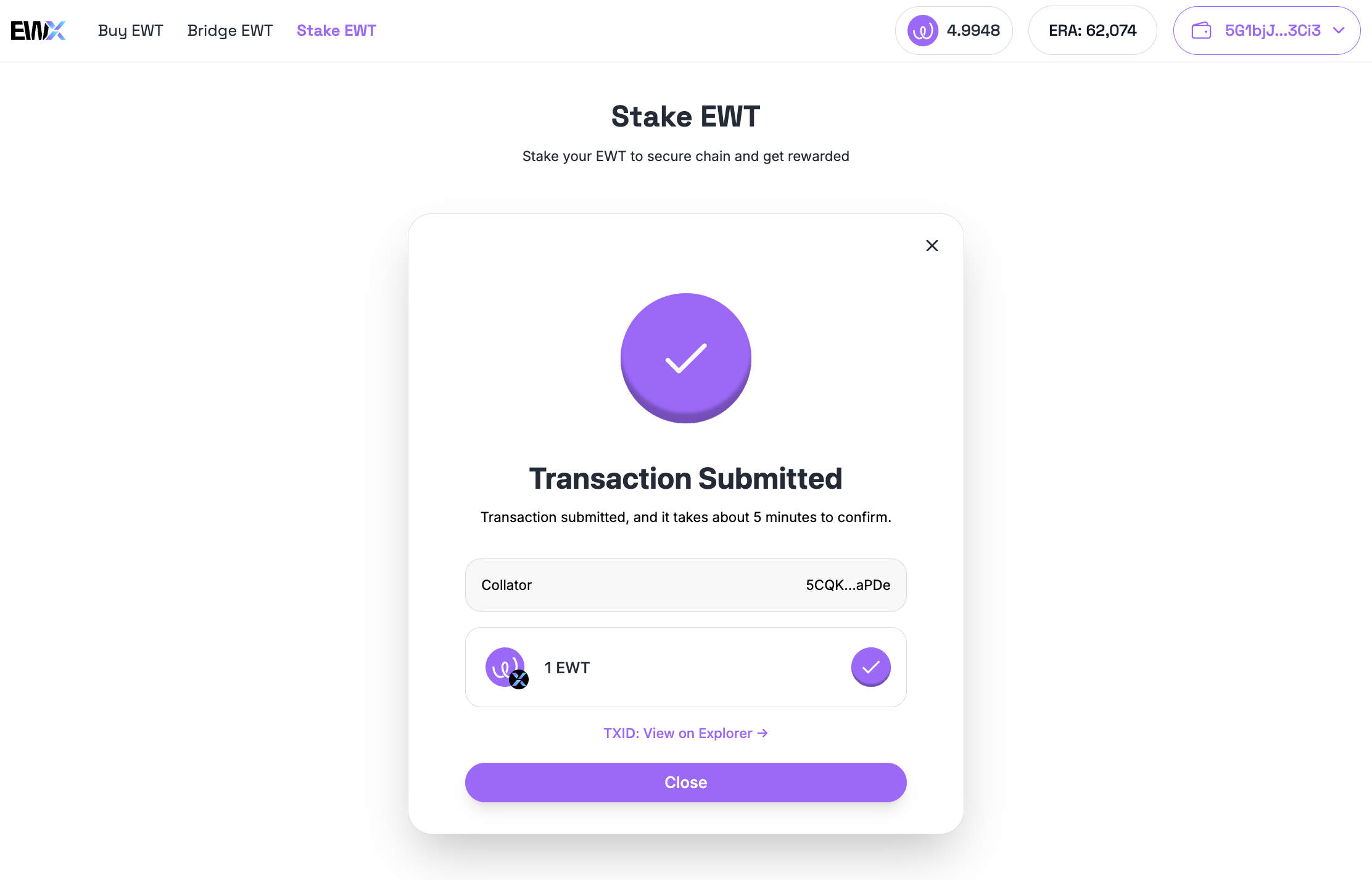
<figure><img src="/files/qcuqfX7xBMyqbmEFTNJV" alt=""><figcaption><p>Stake transaction is submitted</p></figcaption></figure>

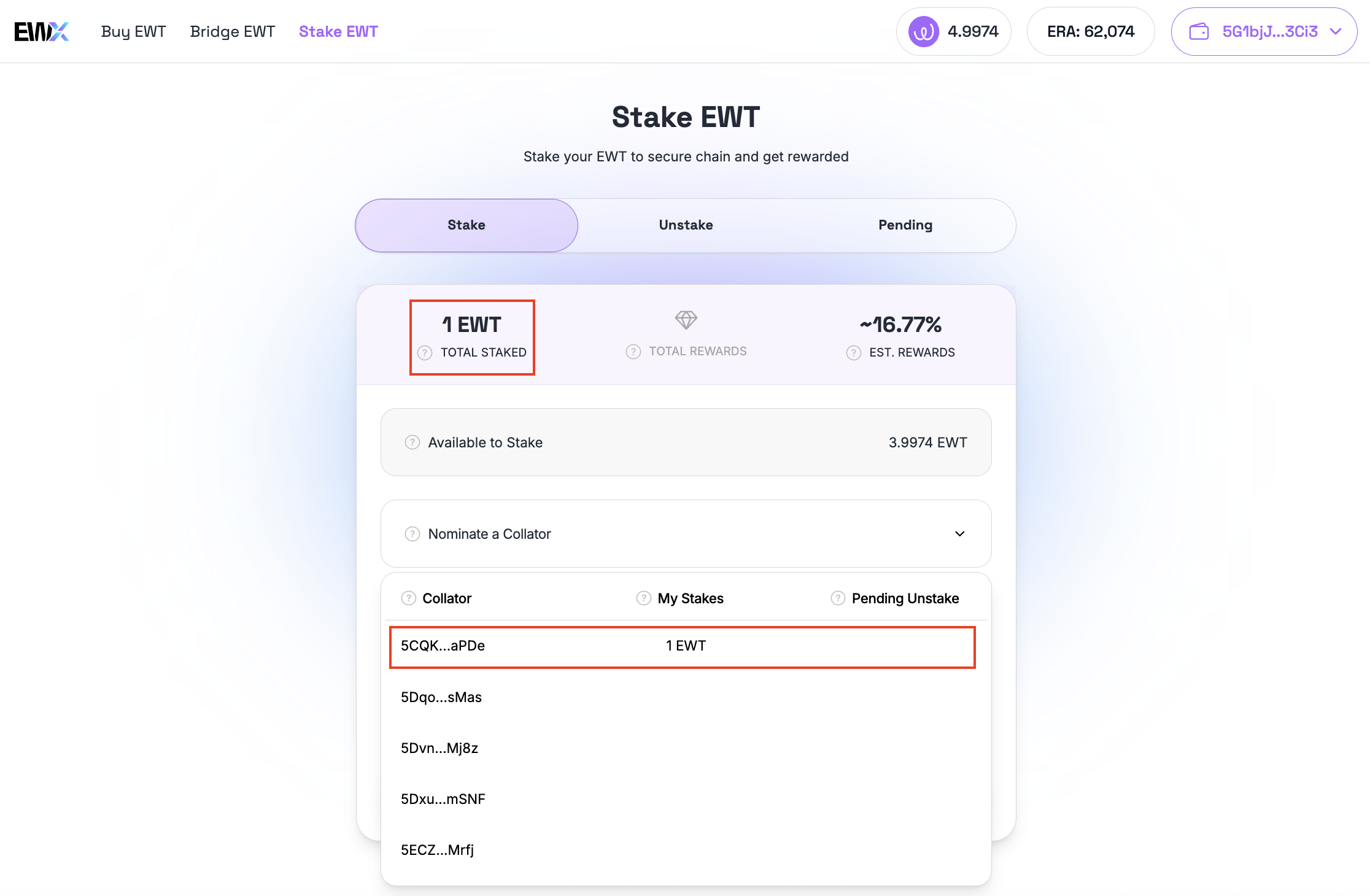
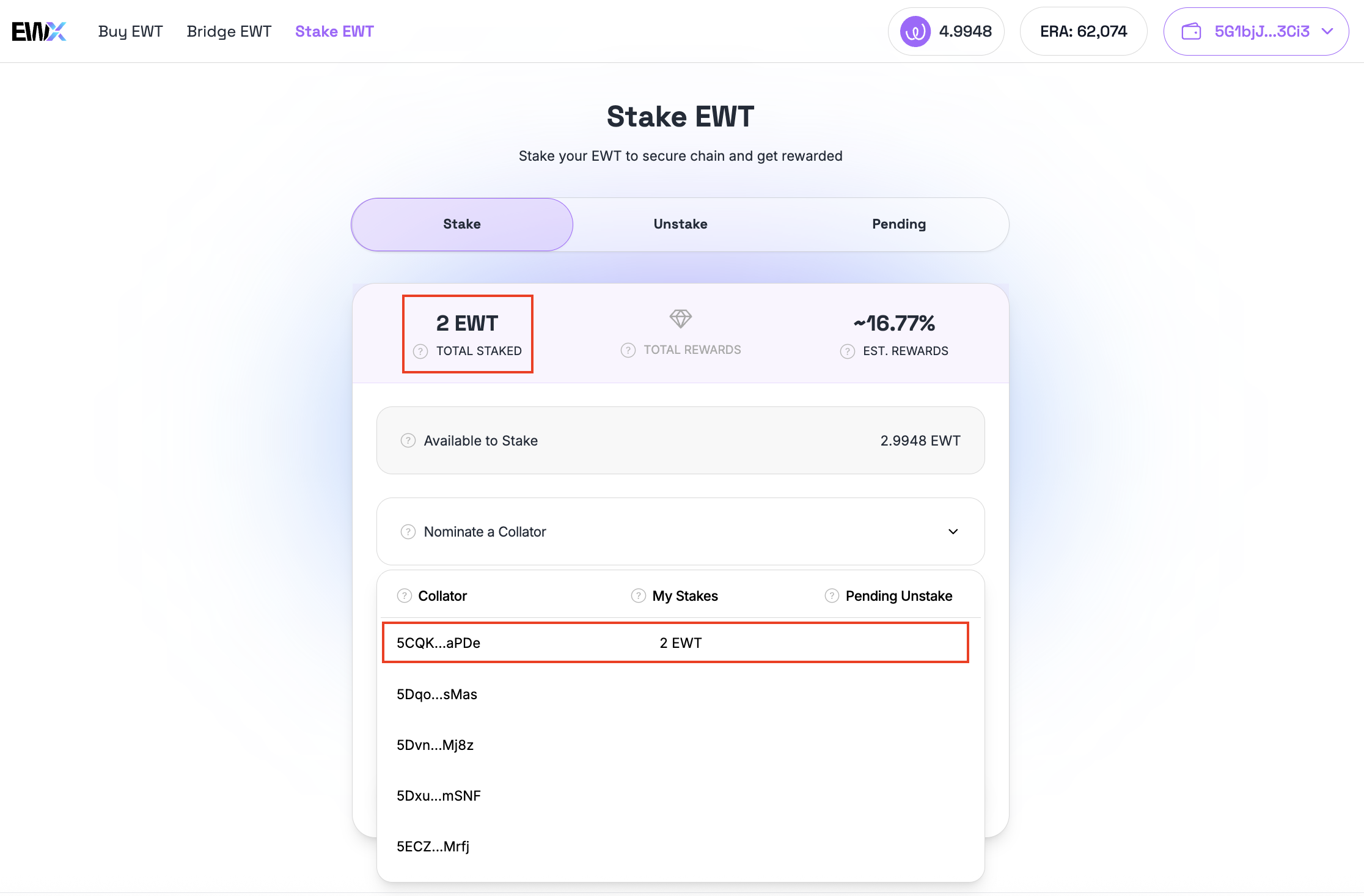
After successfully executing the transaction, Total Staked and Available to Stake amounts will be updated. The staked amount will also be listed in My Stakes column in the collators list.

<figure><img src="/files/7P64VOVcTO7Or67KRyVR" alt=""><figcaption><p>Updated total stake amount</p></figcaption></figure>

### Top-up Stake Amount

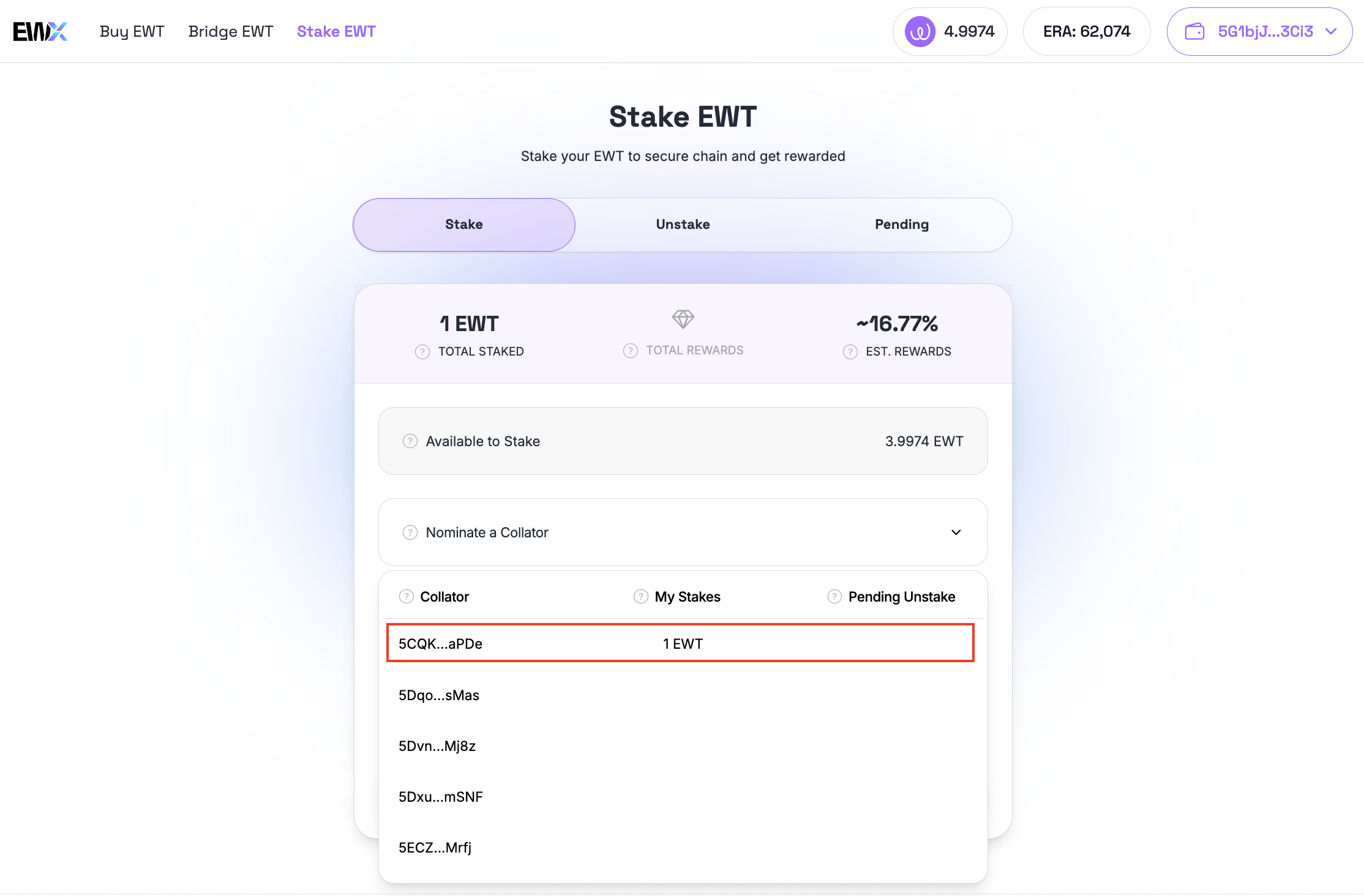
Topping-up stake amount in the current active stakes is very straightforward. Simply choose a collator which you have active stakes.

{% hint style="warning" %}
Only collators which you don't have any pending unstake can be selected.
{% endhint %}

<figure><img src="/files/9aYmdccppua3HmHpMw5u" alt=""><figcaption><p>Select a collator to top-up stake</p></figcaption></figure>

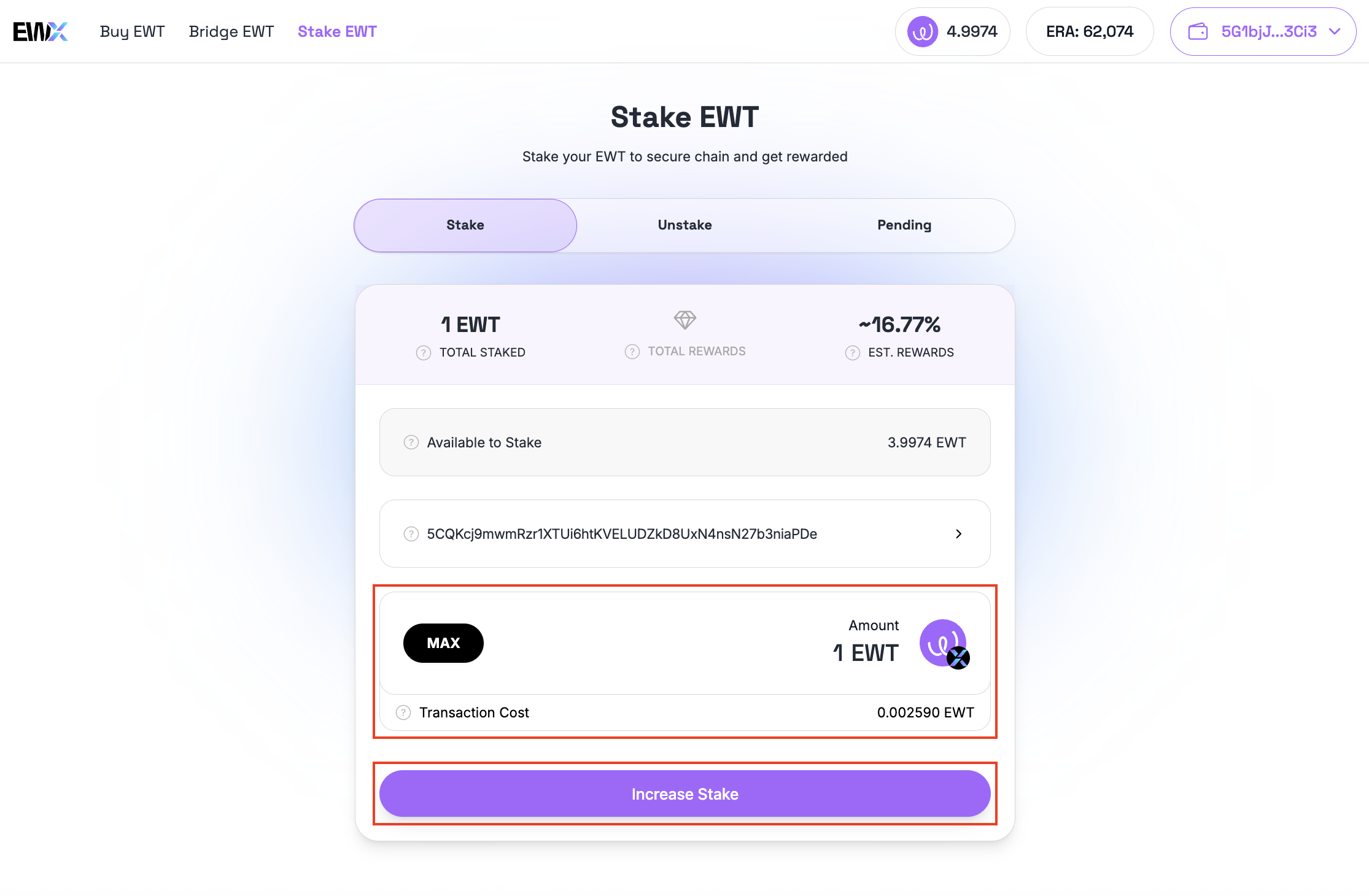
Input the amount to top-up and click the "Increase Stake" button.

<figure><img src="/files/ASSbTv6TLQS11V7yrpyL" alt=""><figcaption><p>Input top-up amount to increase stake</p></figcaption></figure>

A confirmation screen will be displayed. Review the details as displayed and ensure that the checkbox is ticked. Click the "Confirm" button to initiate the transaction.

<figure><img src="/files/U4mloYRTXks1brRWSU0e" alt="" width="375"><figcaption><p>Confirmation dialog showing active stake and amount to increase</p></figcaption></figure>

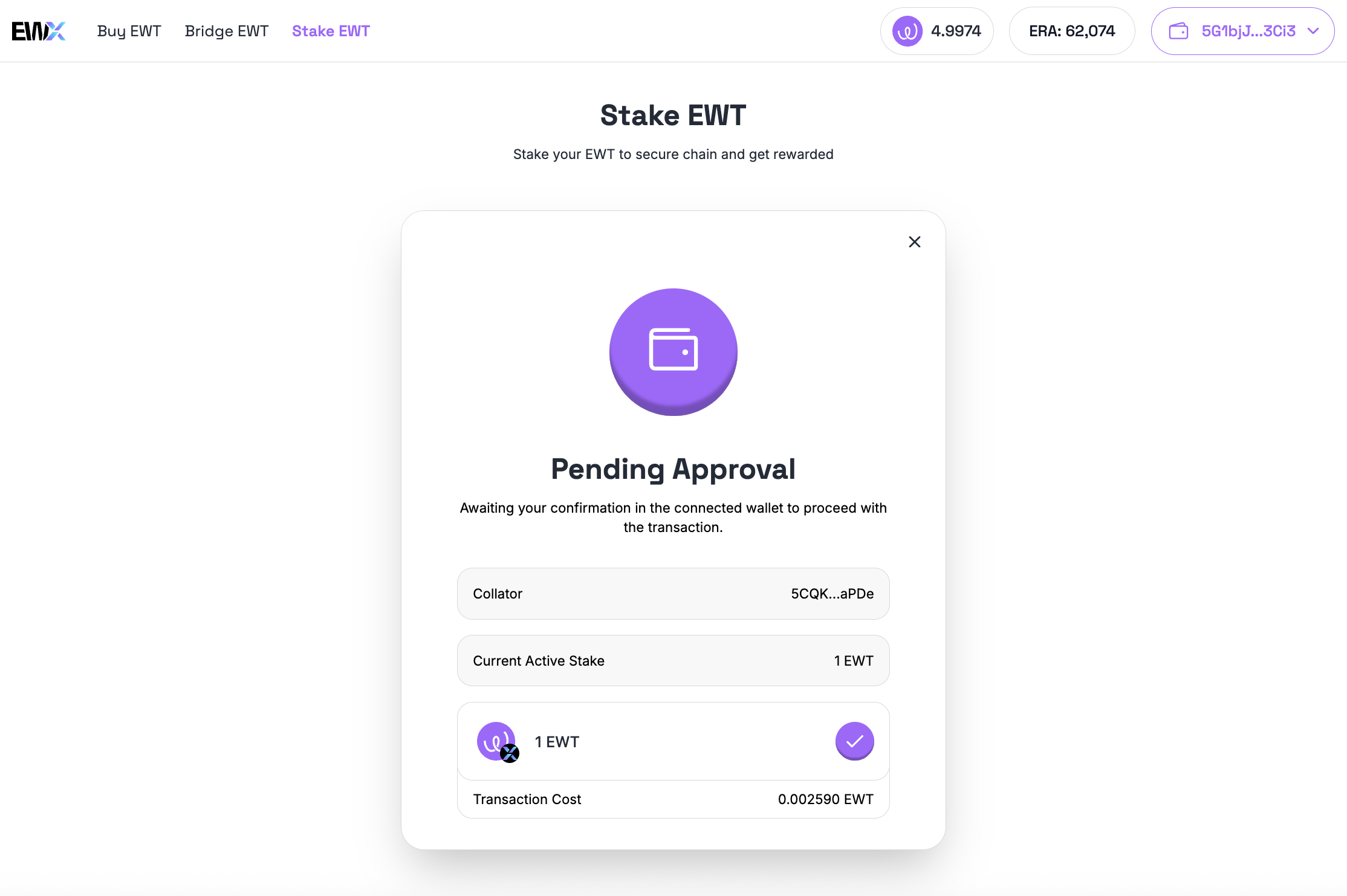
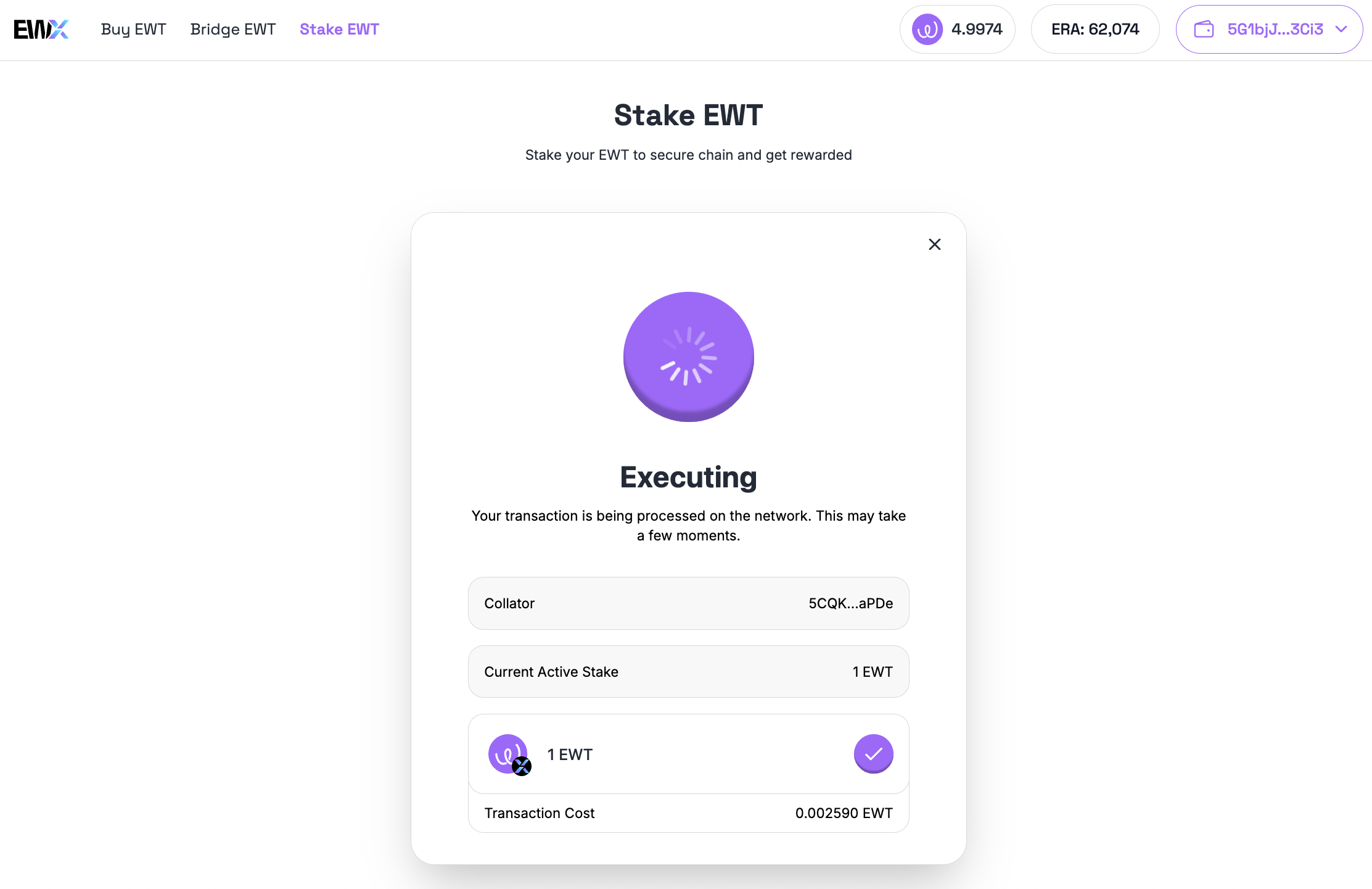
Confirm the transaction in your wallet.

<figure><img src="/files/OJTcoAXej2qjjak2I2H9" alt=""><figcaption><p>Top-up stake is pending approval</p></figcaption></figure>

<figure><img src="/files/NOchWUasZto64uDDFlhG" alt=""><figcaption><p>Top-up stake is executing</p></figcaption></figure>

<figure><img src="/files/p9YUguYx34twNpJkd9Ws" alt=""><figcaption><p>Top-up stake is submitted</p></figcaption></figure>

After successfully executing the transaction, Total Staked and Available to Stake amounts will be updated. The topped-up amount will also be reflected in My Stakes column in the collators list.

<figure><img src="/files/xJ5Gi3t0ajHaKvKfW6r0" alt=""><figcaption><p>Stake balance is updated</p></figcaption></figure>